Does the video have to be short?
No. Open a clip of any length; you choose a 0.4 to 6 second slice of it with the strip. Very long files may take a moment longer to open.
Free · runs in your browser
Missed the boomerang button when it happened? Open the ordinary video, pick the second worth bouncing, and get the forward-and-back loop anyway.
To make a boomerang from an existing video, open the clip here, drag the highlighted window on the strip to the moment you want, and press Export boomerang. The tool plays that slice forwards, then backwards, and repeats it, which is all a boomerang is. It works on footage shot in any camera mode, including long videos, screen recordings and clips friends sent you.
Most phone apps only make a boomerang while you are filming, so the good moment in last week’s video can’t be bounced there. Here the choice comes afterwards, and you can change your mind as often as you like: move the window, try another style, and the preview updates instantly. When the shape matters, crop to 9:16 or 1:1 first; see the Instagram guide for posting it as a Story.
Drop it on this page or press Choose a video. Long clips are fine; only the part you pick is turned into frames.
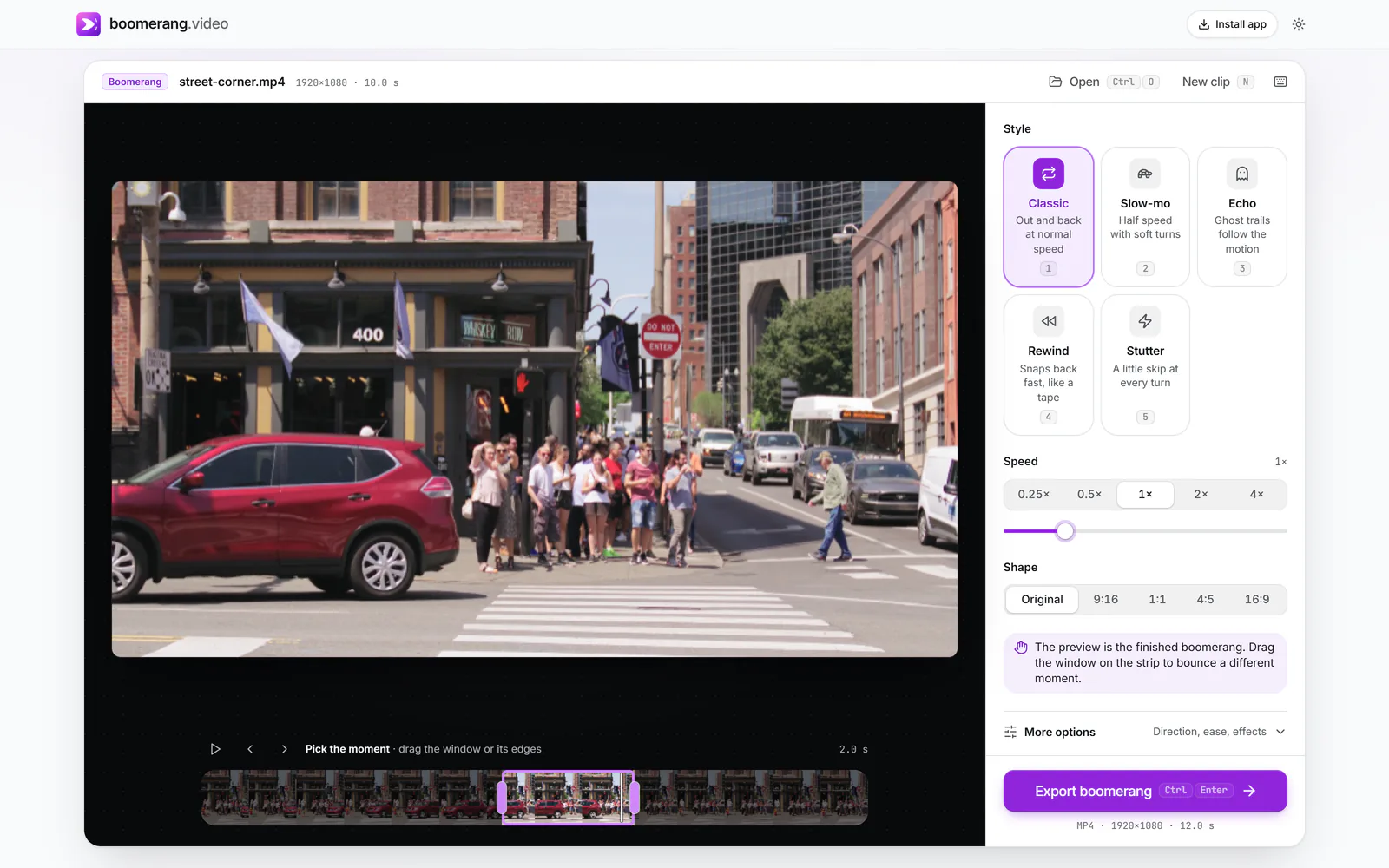
Under the preview, Pick the moment shows the whole clip as thumbnails. Drag the highlighted window to the action, and drag its edges until it covers just the movement (0.4 to 6 seconds).
 (enlarge image)
The window moved to the middle of the clip, where the car pulls away.
The preview loops it out and back at once. If the turn looks abrupt, open More options and raise Ease at the turn; if the motion is too quick, lower Speed.
Choose a Format under Export settings and press Export boomerang. MP4 repeats the bounce three times by default so it reads as a boomerang in apps that play a video once.
A boomerang shows motion twice, once each way, so the best moments have one clear movement with a definite start and end. A few patterns that almost always work:
Keep the camera as still as you can in the slice you pick. Camera shake plays backwards too, and doubled shake is what makes a boomerang look messy. If the clip pans a lot, a shorter window usually hides it.
Around one to two seconds of real time is the sweet spot. Shorter feels like a twitch; longer starts to feel like a rewound video rather than a boomerang. At 0.5× Speed, a one-second moment becomes a four-second out-and-back.
Nothing. The original file is only read, never changed, and the export is a new file containing just the bounce. The rest of the clip is ignored, and the strip is only there to help you find your place.
Because the bouncing part is held in memory as decoded frames, very high resolutions are scaled down for the preview. The export reads the frames again at full quality, up to 1080p on the short edge for video.
If you are about to film and plan to post straight to a Story, the camera’s own boomerang mode is the quickest route: on Instagram it captures a burst of photos in about a second. It can’t bounce a clip you already have, though, and it can’t change speed, crop or add a slow-motion stretch afterwards. For that, come back here with the video.
No. Open a clip of any length; you choose a 0.4 to 6 second slice of it with the strip. Very long files may take a moment longer to open.
Yes. Save it to your phone or computer first, then open it here. Messaging apps often compress video, so the boomerang may look a little softer than the original recording.
Not directly, because a Live Photo isn’t a normal video file. On an iPhone, open it in Photos, tap the More button and choose Save as Video, then open that video here.
It is re-encoded, since the frames play in a new order, but at a generous bitrate. Choose Size Large for up to 1080p. The original file is not touched.
To keep reverse playback smooth, the preview holds smaller copies of the frames in memory. The export reads the clip again at full size, so the file you download is sharper than the preview.
Yes. After exporting, press Change boomerang, move the window to another moment and export again. Each export is a separate file.