Do I need to sign up or install anything?
No. The page is the whole tool. It works in the browser you already have, with no account and no extension.
Free · runs in your browser
No account, no Story, no app to install. Make the loop in your browser and keep it as an ordinary file to send or post wherever you like.
You can make a boomerang without Instagram by opening a clip here and exporting it: the result is a normal MP4, GIF or WebP saved to your device, with no account and nothing posted anywhere. It plays in WhatsApp, iMessage, email, Slack, a presentation or any social app.
People look for this for good reasons: they don’t use Instagram, they don’t want a test Story going live, they want the boomerang for a work chat or a slide, or Instagram’s own Boomerang only films new moments and can’t bounce a clip already on the phone. Everything happens in the browser, so there is also nothing to install. On an iPhone, the Live Photo Bounce effect is another app-free route for photos you took in Live mode.
Phone, tablet or computer, in an up-to-date browser. Press Choose a video, or Record with camera to film a few seconds right here.
Drag the window on the strip under the preview to the movement you want to bounce.
Classic matches the familiar look. Slow-mo, Echo, Rewind and Stutter are the alternatives.
Press Export boomerang, then Download MP4 on a computer or Share or save to Photos on a phone. It’s yours, with no watermark.
 (enlarge image)
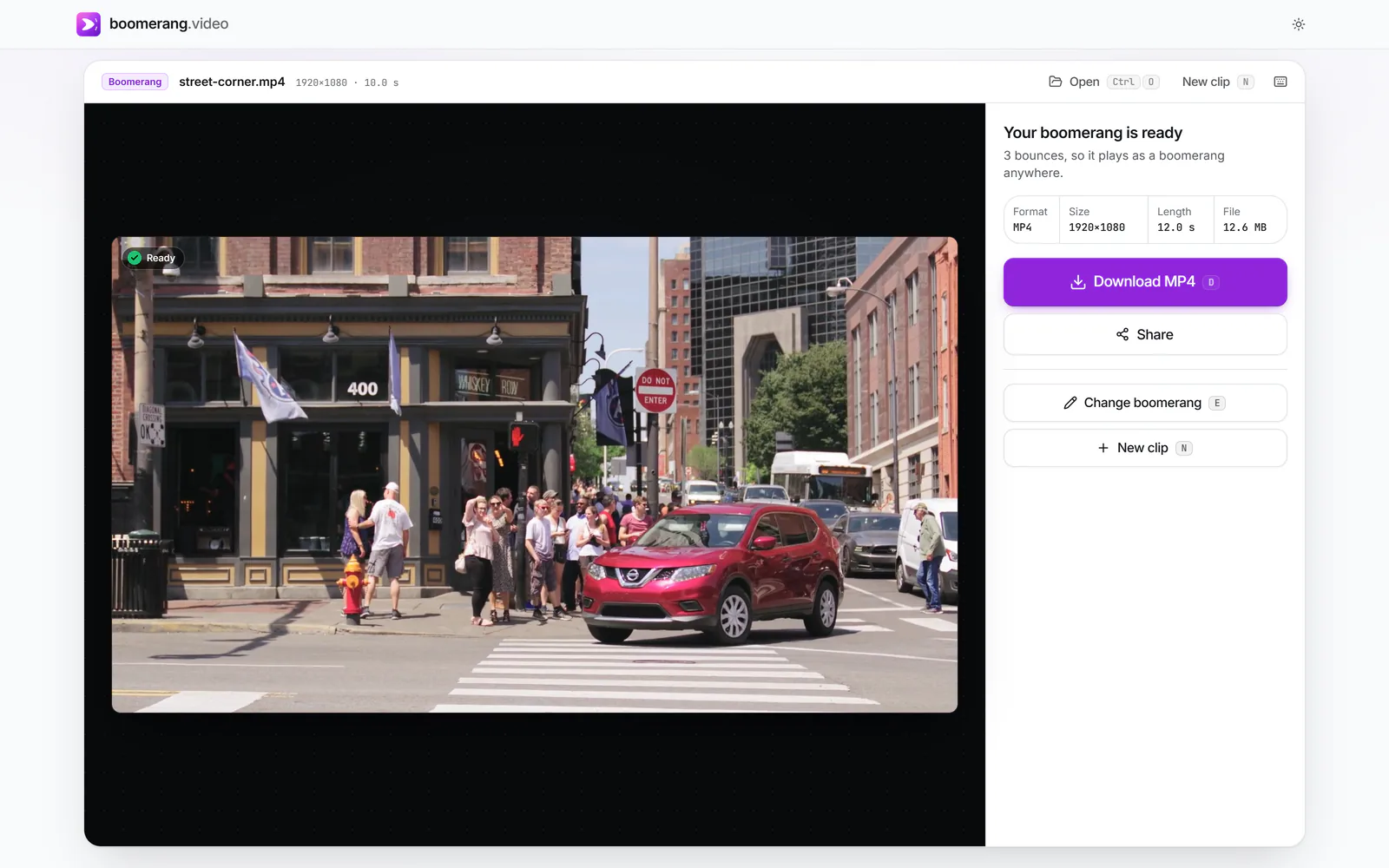
A 12-second MP4 with three bounces, ready for Download MP4.
Different places treat video differently, so pick the Format to match:
Online video makers usually upload your clip to a server, process it there and send it back, often with a watermark until you pay. This site does the work in your browser with WebCodecs, the same video engine the browser uses for playback. The clip stays on your device the whole time, and you can disconnect from the internet once the page has loaded.
Because there is no account, nothing is stored for you between visits either. Download the result before you close the tab.
An Instagram Boomerang is roughly a second of action played out and back several times, in portrait. To get close: choose Classic, keep Speed at 1×, set Shape to 9:16, and pick a window about a second long. If you later decide to post it to Instagram after all, upload the MP4 like any other video.
No. The page is the whole tool. It works in the browser you already have, with no account and no extension.
Yes. Export it as MP4, then on a phone use Share or save to Photos and pick WhatsApp, or attach the downloaded file. WhatsApp plays MP4 videos inline.
There is no badge, watermark or end card. With the Classic style, Speed at 1× and a 9:16 shape it looks like any other boomerang.
Yes. Windows, Mac, Linux and Chromebook all work in Chrome, Edge, Firefox or Safari. You can use a webcam with Record with camera, or open a video file.
The clip is never uploaded; it is decoded and encoded on your own device. Analytics count page visits and button presses, never anything about your video, and you can switch them off in Cookie settings.