Does CapCut have a boomerang effect?
Not as a single button. Duplicate the clip and apply Reverse to the copy, and you have a boomerang. CapCut also offers templates, which vary over time.
Free · runs in your browser
CapCut has no boomerang button, but Duplicate plus Reverse builds one. Here are the steps for the phone app and desktop, and when a one-step tool is quicker.
To make a boomerang in CapCut, trim the clip to the moment, Duplicate it, select the second copy and apply Reverse. Played together, the original runs forwards and the reversed copy runs back to the start. Repeat the pair for more bounces, then export.
It works well, but it takes a few minutes per boomerang and the turn can show a doubled frame where the two copies meet. If you only need the boomerang itself, the tool at the top of this page does it in one step from the same clip, without a timeline, and avoids the doubled frame. Then bring the result into CapCut for the rest of your edit. A ping-pong video explains that frame order in more detail.
Reverse is documented in CapCut’s help centre; Duplicate is in the clip menu. Labels are from the 2026 apps.
Tap New project, pick the video, and trim it on the timeline to just the moment (about 1 to 2 seconds).
Tap the clip to select it and tap Duplicate in the bottom menu. A second copy appears right after the first.
Select the copy, tap Edit, scroll the toolbar and tap Reverse. Wait while CapCut processes it.
Select both clips and duplicate them again for more bounces. Mute the clips or replace the audio, since reversed sound plays backwards. Delete CapCut’s ending clip if one was added.
Tap the export button at the top right and save the video.
Reversing a long clip takes time in CapCut because it processes the whole copy. Trimming to the moment before duplicating keeps it fast.
When the forward clip ends on its last frame and the reversed copy starts on that same frame, the frame shows twice and the motion pauses for an instant. At the other end, the reversed copy ends on the first frame and the next forward copy starts on it again.
To hide it in CapCut, trim one frame off the start of each reversed copy and one frame off the start of each forward copy after the first. Zoom in on the timeline to see single frames. The tool on this page builds the order without the repeats, so there is nothing to trim.
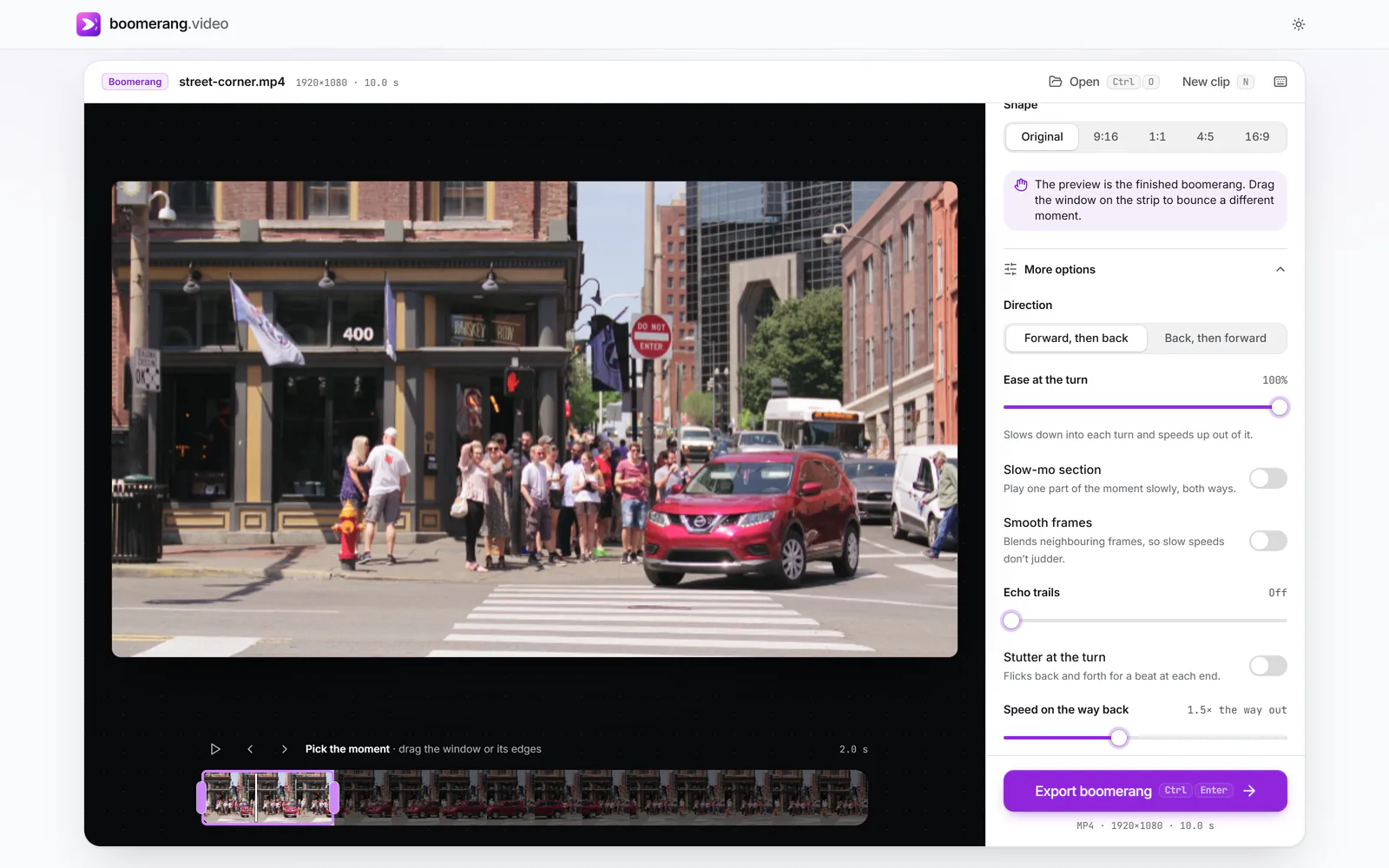
CapCut’s Speed → Curve presets can slow the end of the forward clip and the start of the reversed one, which gives a softer turn. Here, Ease at the turn under More options does the same with one slider.
 (enlarge image)
Ease at the turn at 100% and a quicker way back, without a timeline.
CapCut’s help centre says most exports have no watermark, but a watermark or branded ending can appear when a project uses certain templates or stock assets, or keeps the default ending clip. Before exporting:
Not as a single button. Duplicate the clip and apply Reverse to the copy, and you have a boomerang. CapCut also offers templates, which vary over time.
On mobile, select the clip, tap Edit and scroll the toolbar to Reverse. On desktop and web, select the clip and click Reverse in the editing toolbar.
The last frame of the forward clip and the first frame of the reversed copy are the same picture, so it shows twice. Trim one frame from the start of each reversed copy to remove the pause.
Yes. Export an MP4 here and import it into CapCut like any video. It’s a normal file with no watermark.
Yes, the audio of a reversed clip plays backwards. CapCut’s own guide suggests muting or replacing it.